How to Calibrate a Digital Compass
Complete Compass Calibration Guide for Accurate Navigation
Is your compass showing wrong directions? Learn how to calibrate your digital compass for accurate readings. This guide covers calibration methods for iPhone, Android, and web-based compass applications.
Why Compass Calibration Matters
Your smartphone's digital compass uses a magnetometer sensor to detect Earth's magnetic field. Over time, this sensor can become misaligned due to exposure to magnetic fields from speakers, magnets, electronic devices, or even metal objects in your environment.
Calibration resets the magnetometer's reference points, ensuring your compass provides accurate directional readings. Without proper calibration, your compass could be off by 10-90 degrees, making navigation unreliable.
Signs Your Compass Needs Calibration
- Spinning needle: The compass needle rotates erratically without settling
- Wrong direction: North points in obviously wrong direction
- Inconsistent readings: Direction changes dramatically with small movements
- Slow response: Compass takes long time to settle on a direction
- Stuck needle: Compass doesn't respond to device rotation
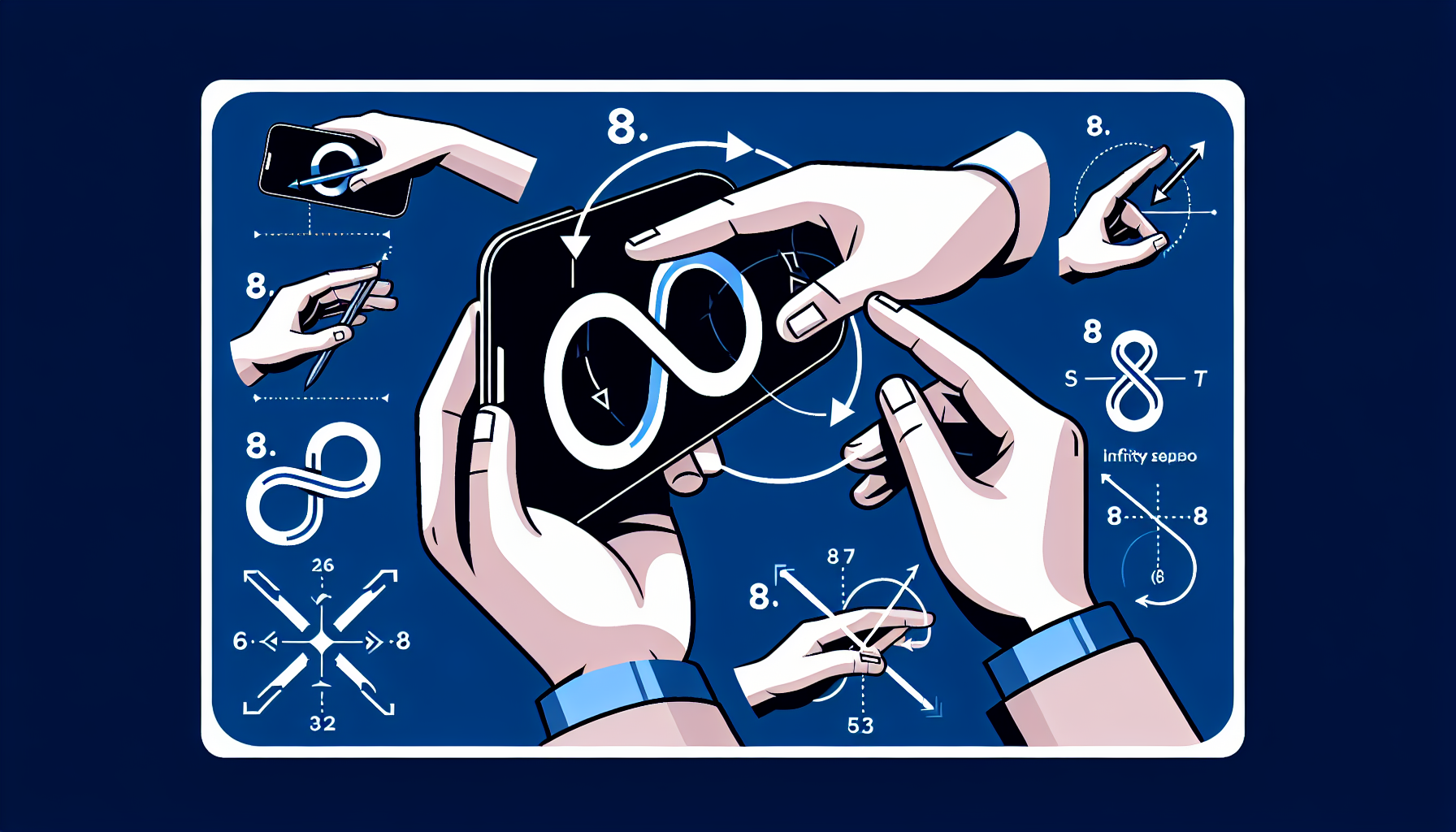
The Figure-8 Calibration Method
The most effective way to calibrate your compass is the figure-8 method:
Step 1: Open Your Compass App
Launch this compass or your device's built-in compass application.
Step 2: Hold Your Phone Properly
Hold your phone firmly with the screen facing you, away from metal objects.
Step 3: Move in Figure-8 Pattern
Slowly move your phone through the air in a figure-8 (infinity symbol) pattern. Rotate your wrists as you move, exposing all sides of the phone to different orientations.
Step 4: Repeat 3-5 Times
Continue the figure-8 motion for 15-30 seconds until the compass stabilizes.
Step 5: Verify Calibration
Point your phone toward a known direction (like the sun's position) to verify accuracy.
iPhone Compass Calibration
On iPhone, compass calibration happens automatically, but you can force recalibration:
- Open Settings → Privacy → Location Services → System Services
- Ensure "Compass Calibration" is enabled
- Open the Compass app and perform figure-8 motion
- iOS will show a calibration screen if needed
Android Compass Calibration
On Android devices:
- Open Google Maps and tap the blue location dot
- Tap "Calibrate compass" at the bottom
- Follow the on-screen figure-8 instructions
- Alternatively, use any compass app and perform figure-8 motion
Tips for Accurate Compass Readings
- Avoid interference: Stay away from large metal objects, speakers, and electronics
- Remove phone case: Some cases with magnetic closures can affect readings
- Hold phone flat: Keep device parallel to the ground
- Wait for GPS: Some apps combine GPS heading with magnetic readings
- Check magnetic declination: Adjust for your location's magnetic variation
Troubleshooting Compass Problems
Compass Still Inaccurate After Calibration?
Try these additional steps:
- Restart your phone completely
- Move to an open area away from buildings
- Remove any magnetic accessories (wallet cases, mounts)
- Check for software updates
- Reset location and privacy settings
Related Compass Guides
- Online Compass - Use our free digital compass
- How to Use a Compass - Complete navigation guide
- iPhone Compass - iOS-optimized compass
- Android Compass - Android-optimized compass
- Magnetic Declination - Understanding true vs magnetic north